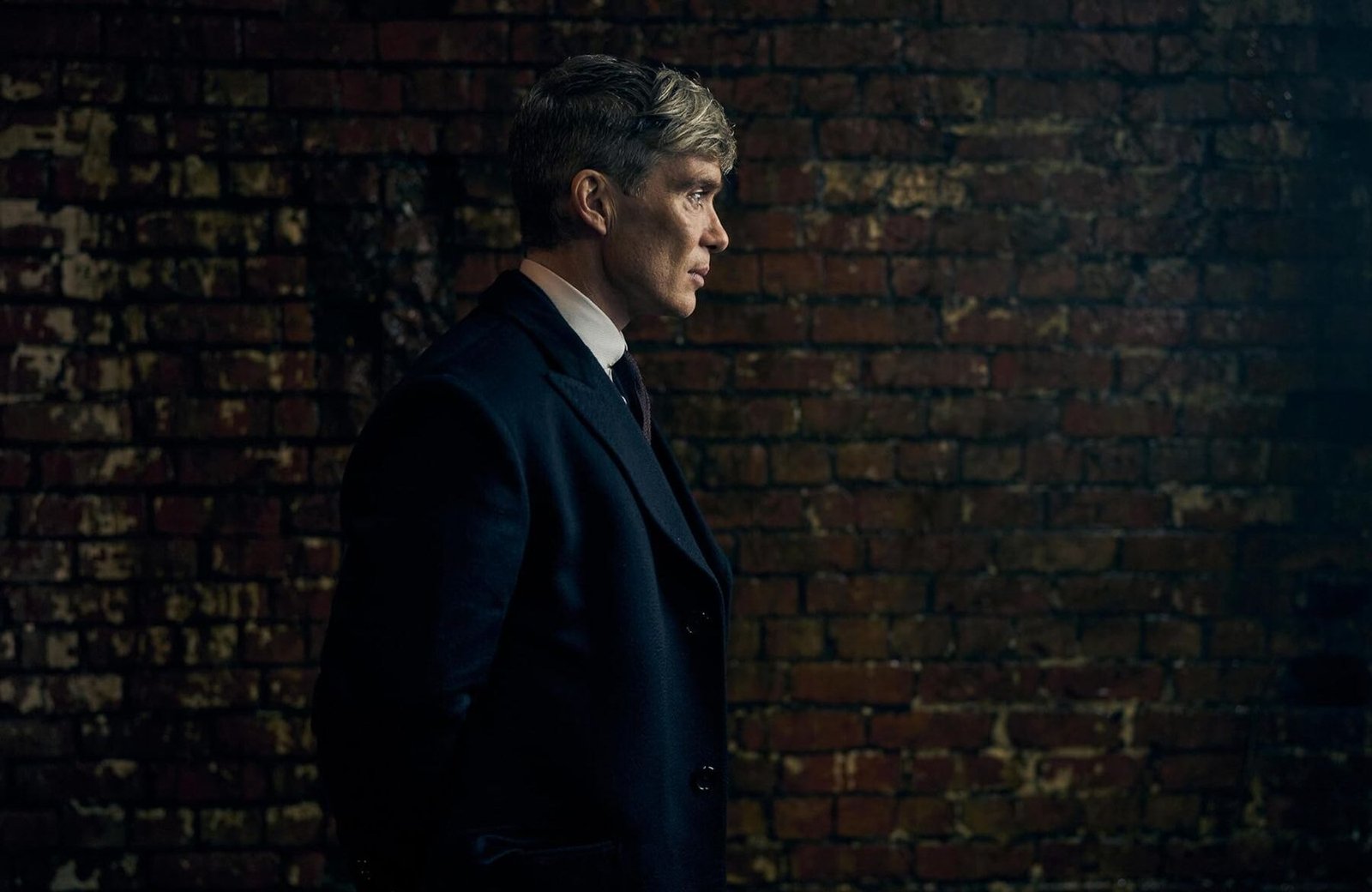







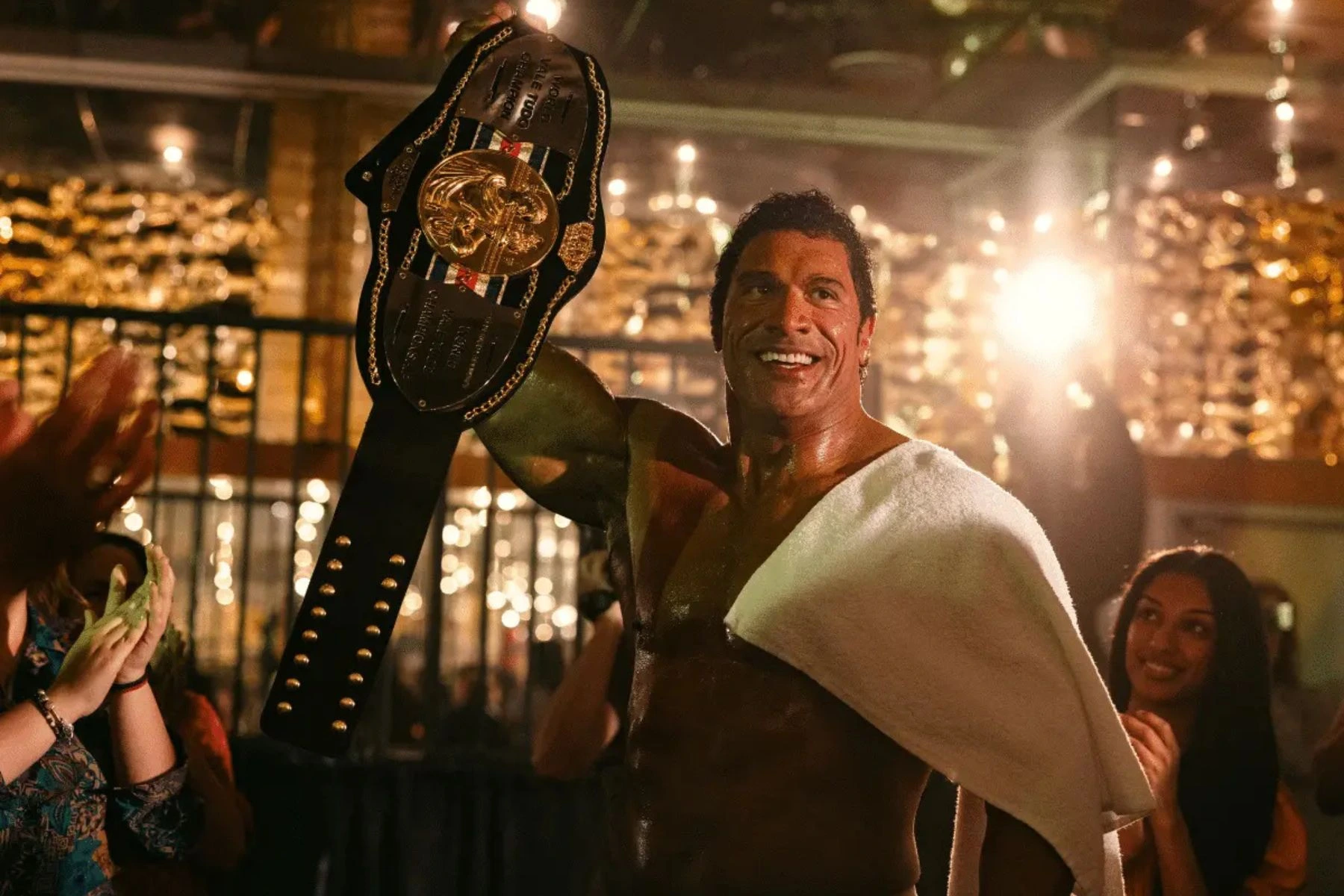

It usually starts the same way with bright lights, a full arena, and a fighter walking out as if nothing can stop him. For years, that’s the side of Dwayne Johnson people have seen on screen. ‘The Smashing Machine’ changes that almost right away, and this time, it’s not about being unbeatable. It’s about what happens when everything goes wrong.
Directed by Benny Safdie, the film depicts a period in Mark Kerr’s life when success and pressure kept growing without relenting. Instead of making things simple or easy to watch, it focuses on the messy parts: the burden of expectations, habits that develop over time, and moments when things fall apart. It’s calmer and more down-to-earth, and that change lets Johnson do something that feels much more real than what people usually see from him.
Advertisement · Continue Reading Below
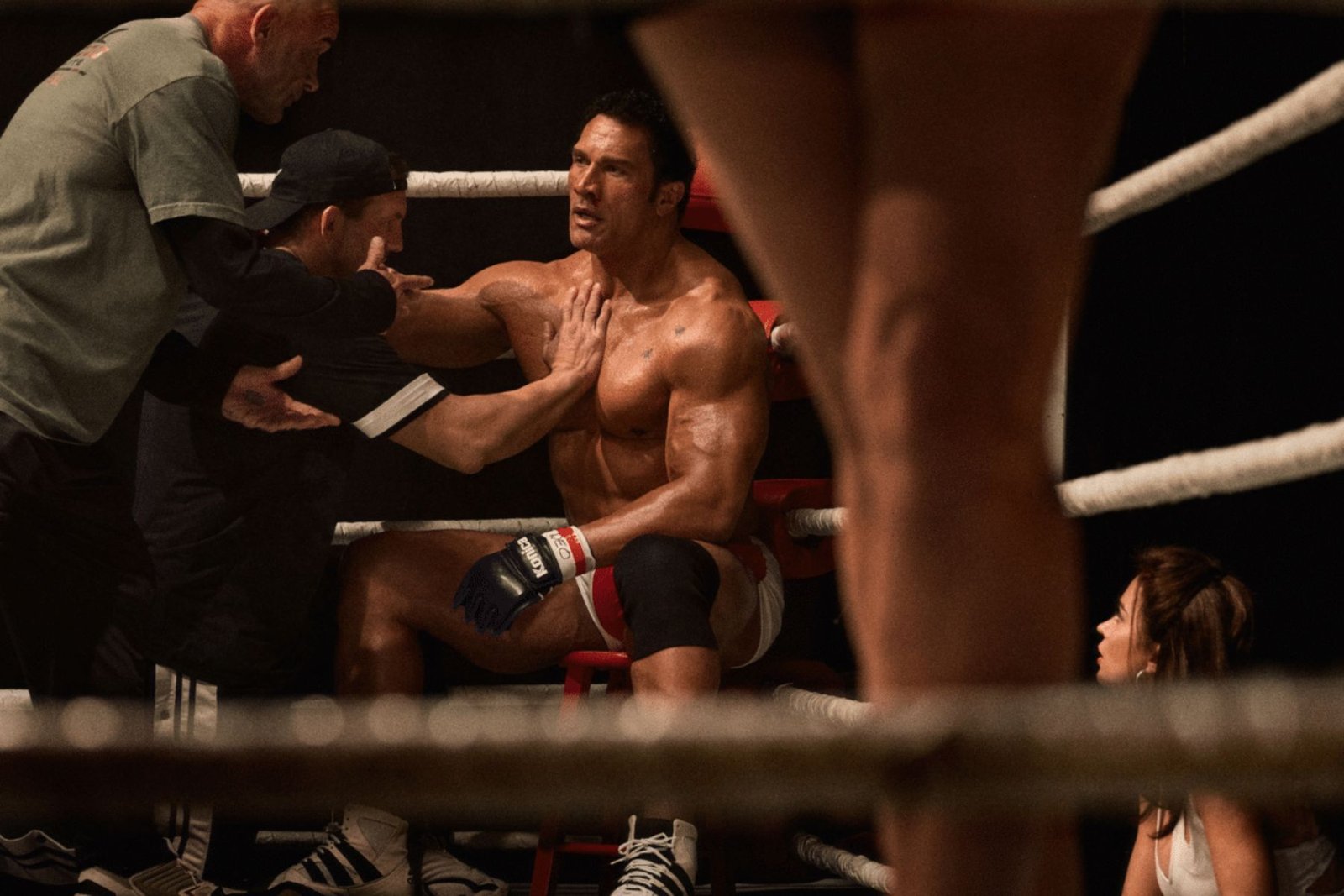
There’s a certain edge to the way Benny Safdie handles this film, and if you’ve seen Uncut Gems or Good Time, you can feel that same restless energy right away. The camera rarely settles, and even in quieter moments, there’s this constant sense that things could fall apart at any second.
A lot of this feeling comes from the way the movie is shot. The camera stays close, but not always where you’d expect, especially during the fight scenes. Rather than putting you right in the action, it keeps you just outside, surrounded by the noise and movement around the ring. It feels messy in a natural way, and that makes it a little tougher to watch, but in a good way.
Advertisement · Continue Reading Below
What stands out most is what the film chooses to focus on. This isn’t a story about big wins or moments of victory. Instead, it spends more time on what happens after, in the quiet moments when things slow down and reality sets in. That shift changes how you watch the movie. You’re not waiting for a comeback or a big win—you’re watching someone deal with what comes next. That’s where the film finds its meaning, and it feels more honest than most stories like this.
The acting and setting have a rough quality that makes everything feel more immediate, almost as if you’re seeing something you’re not supposed to. This adds tension without the film needing to push it. The movie doesn’t explain everything or guide you through each moment, and that actually helps. It lets you stay with what’s happening instead of hurrying you along.

A big part of what makes ‘The Smashing Machine’ work is how much Dwayne Johnson transforms into the character. You notice the physical changes right away, like his weight and appearance, but it’s the little things that really sell it. He moves differently, carries himself as if he’s heavier, and even his breathing sounds laboured, as if the character is always tired. Since he did all the training and physical challenges himself, without using doubles, the intense scenes feel even more authentic.
The film puts more attention on the characters than on big action scenes, which sets it apart from most sports movies. Like A24’s ‘The Iron Claw’, it cares less about wins and more about what happens off the field. Rather than telling Mark Kerr’s entire life story, it focuses on a specific period, letting the story develop at its own pace without feeling rushed or overloaded with details.
This tighter focus helps the film’s heavier themes feel more natural. It doesn’t overdramatize or push emotions too hard, especially when dealing with addiction and its patterns. The movie lets those moments speak for themselves, and that restraint gives the performances greater impact as the story unfolds
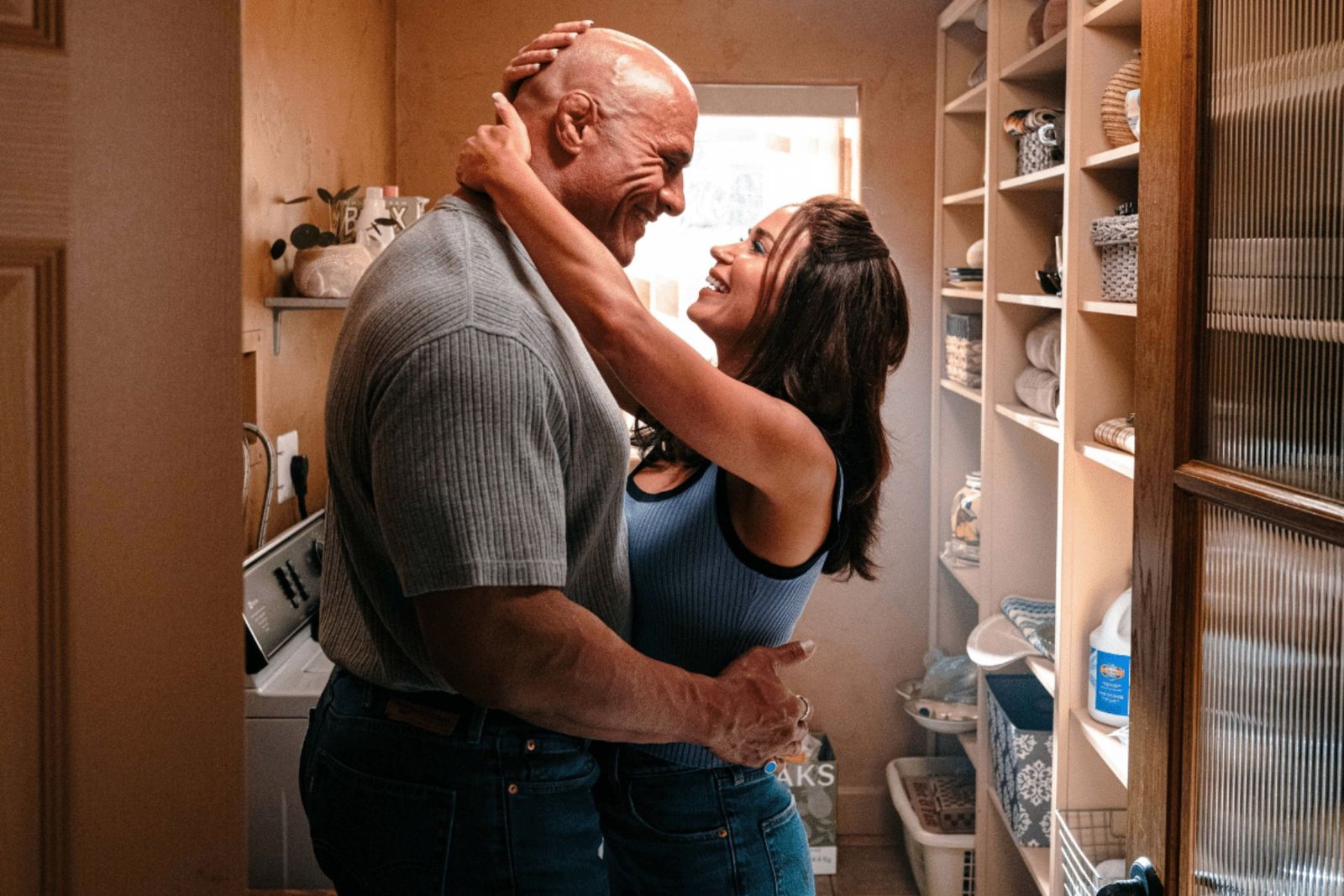
The way the relationship plays out feels as intense as anything in the ring. Benny Safdie doesn’t soften those moments or treat them as background to the main story. He pushes them forward with the same energy, turning their home into a setting that carries its own tension. The arguments don’t feel staged or exaggerated. They feel messy, uncomfortable, and a bit too real, shifting the film’s atmosphere in a way that’s hard to ignore.
That’s where Emily Blunt really comes through. She doesn’t play Dawn Staples as someone trying to keep things together or steer Kerr back on track. Instead, she faces that energy directly, reacting, pushing back, and sometimes feeling just as unpredictable. This makes their relationship feel more equal. Her performance feels fresh and natural. Instead of standing aside, she becomes just as important to the story’s impact as everything else happening around them.
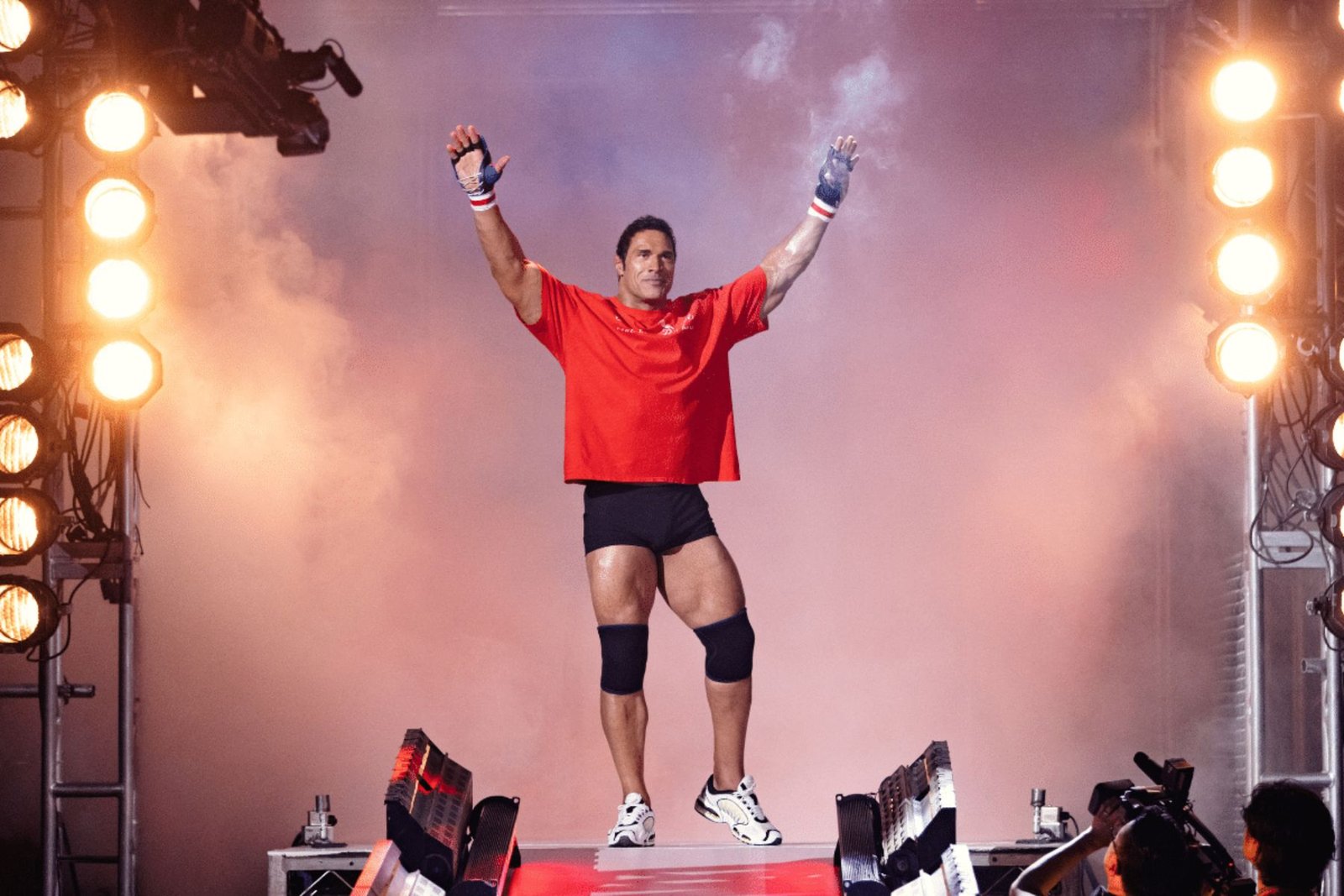
As mentioned before, ‘The Smashing Machine’ isn’t your typical sports movie, and that’s what makes it stand out. It focuses on personal struggles, showing how pressure, addiction, and self-destruction affect the body, mind, and the people around. The film quietly honours the early days of MMA, highlighting what fighters faced before the sport grew into what it is today, when risks were high, and rewards didn’t always follow.
Advertisement · Continue Reading Below
The film does a great job creating its world, paying close attention to details. The costumes, sets, and music help place it in the late ’90s and early 2000s, but it never feels fake or over-the-top. Visually, the movie shifts from a rough, almost old footage style to a sharper, more polished look, quietly changing the mood as the story goes on.
What really holds everything together, though, is the balance between Dwayne Johnson and Emily Blunt, because beneath everything, the film keeps returning to something simple. The biggest moments don’t always happen in the spotlight, and the hardest fights aren’t always the ones people are watching, which is what gives the story its punch.
IMDb: 6.3 | Tomatometer: 71% | Popcornmeter: 73% | Average: 69
★★★★☆